Using the Desktop Client
Although most of the features in Axiom Strategy Management are available from the Web Client, if you are a system administrator or are using certain reports, you may need to use the Desktop ClientGeneral term for using either the Excel Client or the Windows Client, both of which are installed to the user's desktop. occasionally; for example, when assigning security roles to users.
All Axiom Software products, including Axiom Strategy Management, share a common interface and use many of the same features. The interface includes the following common sections.
Display area
The main area of the Desktop Client displays open files. By default, it shows the Axiom Strategy Management Dashboard. The display here is essentially identical with the one in the Web Client; the only pieces missing are the side navigation panel, replaced by the Axiom Assistant pane; and the Web Client toolbars. If you click any links in the Dashboard, they behave the same as in the Web Client—they either open a window or open the corresponding Axiom Strategy Management Web Client page. To work within the Desktop Client, use the task panes.

Task panes
A task pane provides access to commands, utilities, reports, plan files, and so on for Axiom Strategy Management, and displays on the left side of the main display area. To switch between task panes, click the tabs on the left side of the interface. To expand or collapse the task panes, click the arrow in the left-hand corner above the tabs.


Ribbon tabs
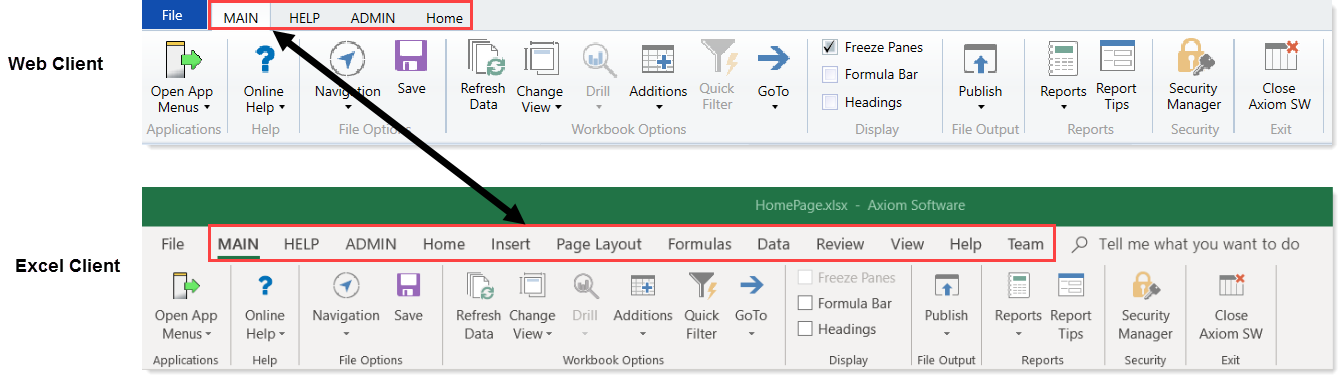
Ribbon tabs provide access to commonly used features and shortcuts to frequently accessed files. They display above the task pane and main display areas. The role assigned to you determines the ribbon tabs that display. For example, the Admin ribbon tab only displays to those users assigned the Administrator role profile.
NOTE: The role assigned to you determines the ribbon tabs that display. For example, the Admin ribbon tab only displays to those users assigned the Administrator role profile.
Includes commands for accomplishing most tasks in Axiom:
- Opening, closing, and saving files
- Viewing data in spreadsheets (if you have access rights to do so)
- Printing or emailing files
- Accessing shortcuts to frequently accessed reports

Includes standard spreadsheet commands.

Some options on the ribbon tabs display grayed out unless certain types of files such as reports or plan files are currently open, or if you do not have the necessary security permissions to use the feature.
The Excel Client displays all of the same ribbon tabs included in a normal Excel file. The Windows Client only includes a subset of the same ribbon tabs located in the Home ribbon tab.
TIP: When creating reports, we recommend that you use the Excel Client.
Windows Client or Excel Client?
The following table describes each client:
NOTE: All Axiom Strategy Management web pages are configured for viewing in the Web Client. You can view the Dashboard in the Windows and Excel clients, but if you click a link to another page from a Dashboard link, you cannot navigate back.
| Type | Description |
|---|---|
| Windows Client |
|
| Excel Client |
|
NOTE: The instructions in this website, including the screenshot examples, assume that your organization is using the Windows Client. The Excel Client uses the same features, but with the added benefit of the Excel interface, including the Excel ribbon tab.
